

How a check works
Cartainty walks through the checkout flows you set up on each store, on a schedule: product page, cart, discount, shipping, up to the payment step. When a step fails, you get the step, the reason in plain words and a screenshot of every step before it.
One check, start to finish
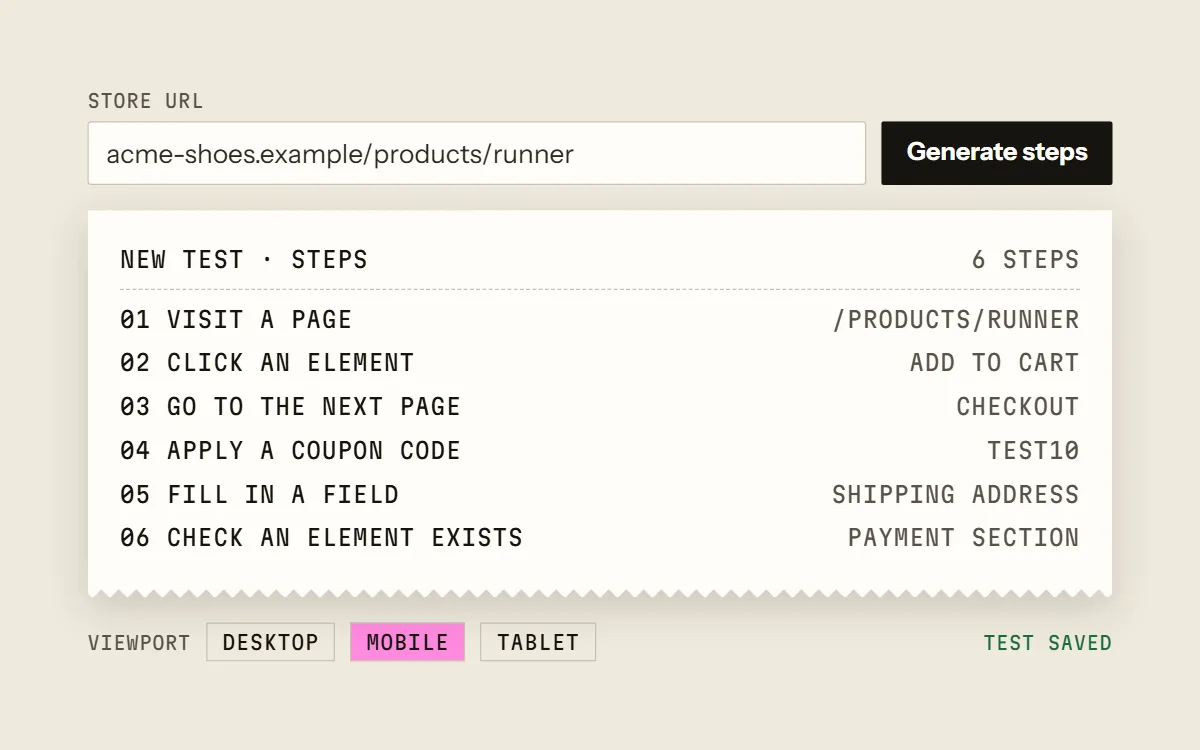
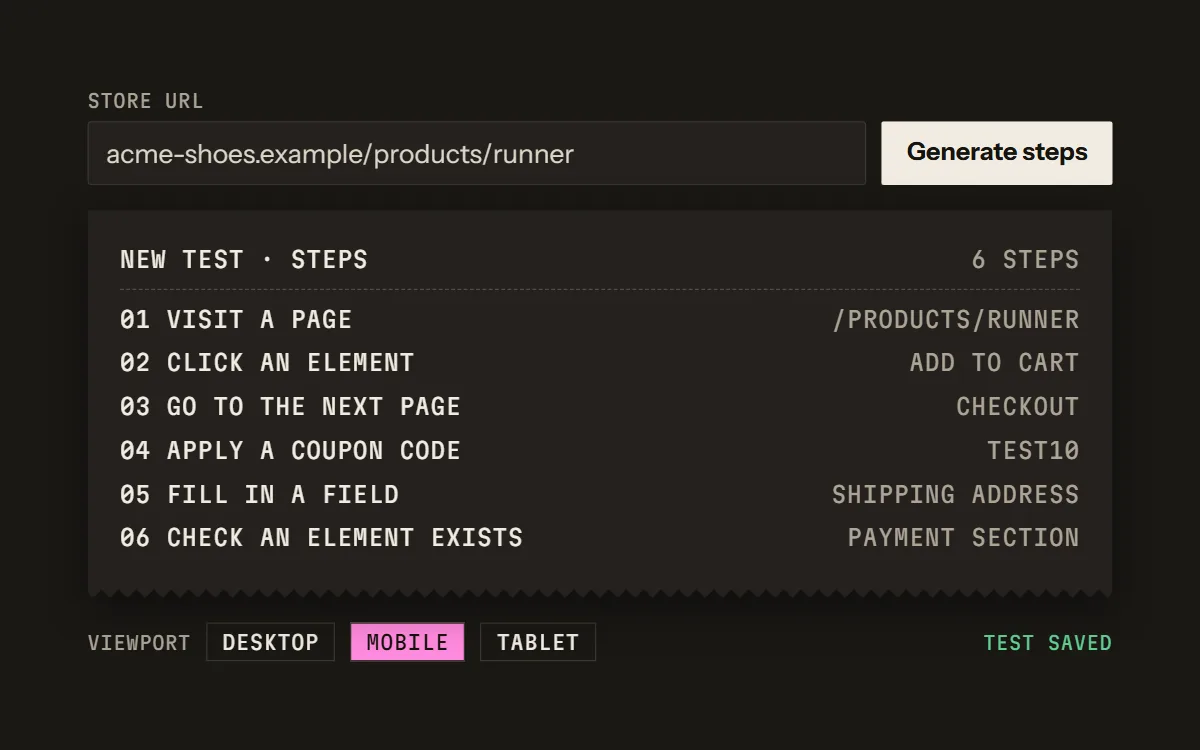
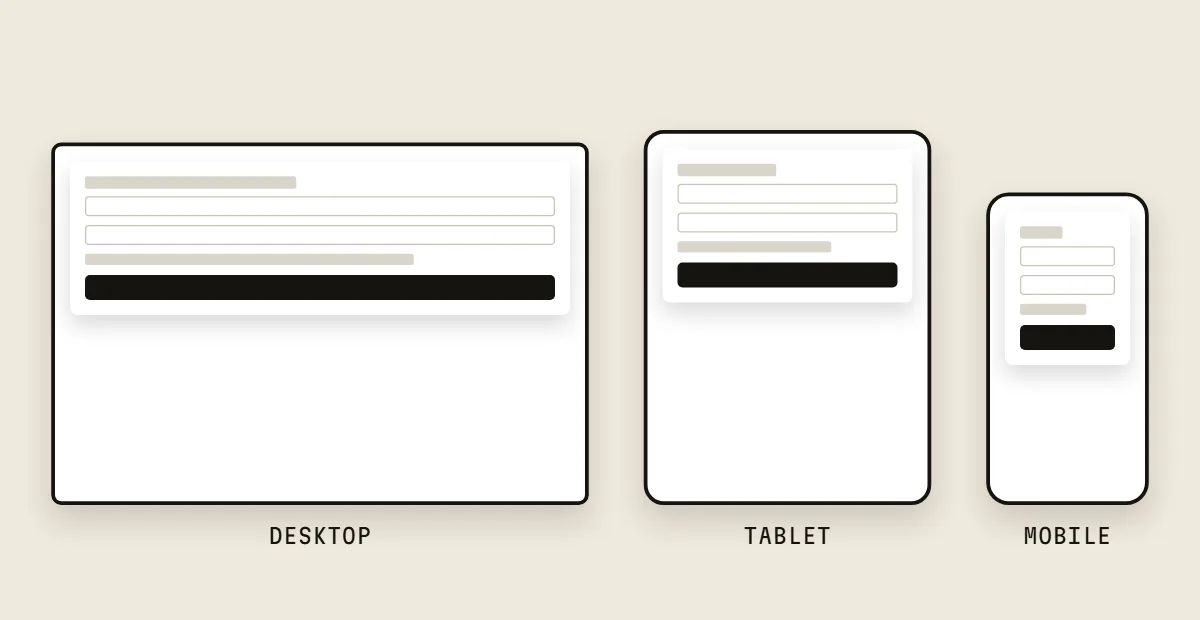
Set up a testPaste a store URL and the steps are generated. Change them, add steps by hand, or record them with the Chrome extension on Pro and Business. Pick one viewport: desktop, mobile or tablet. 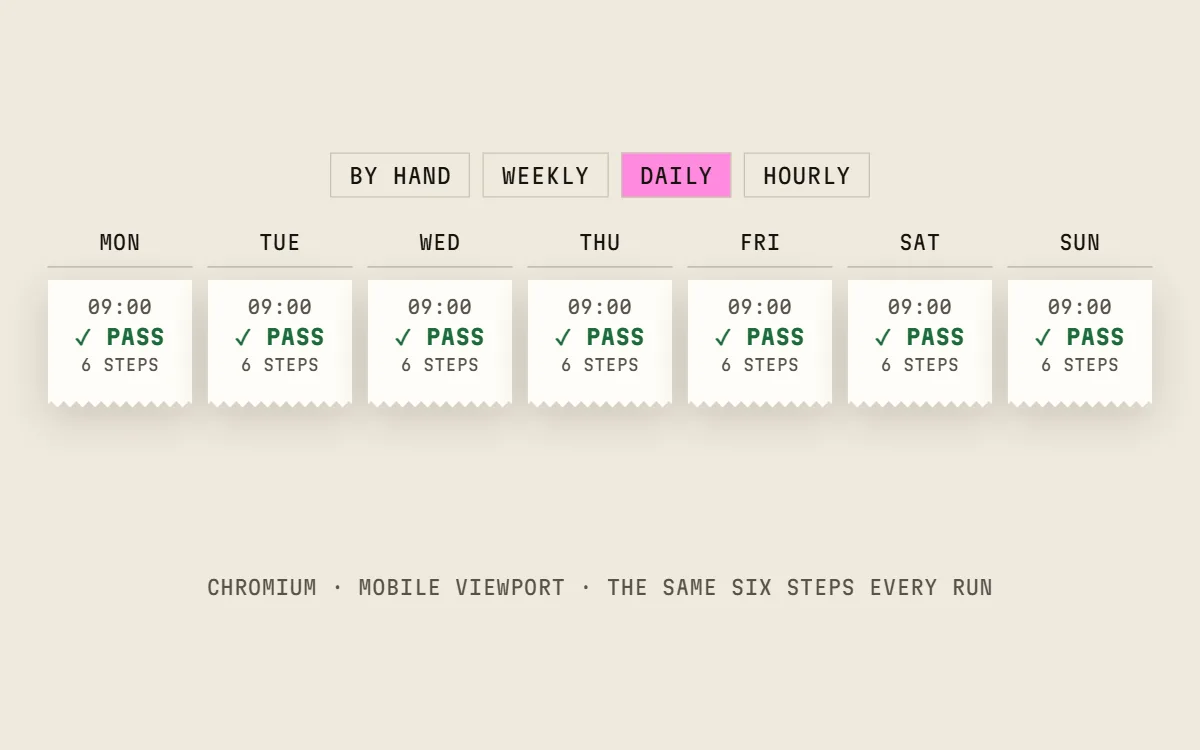
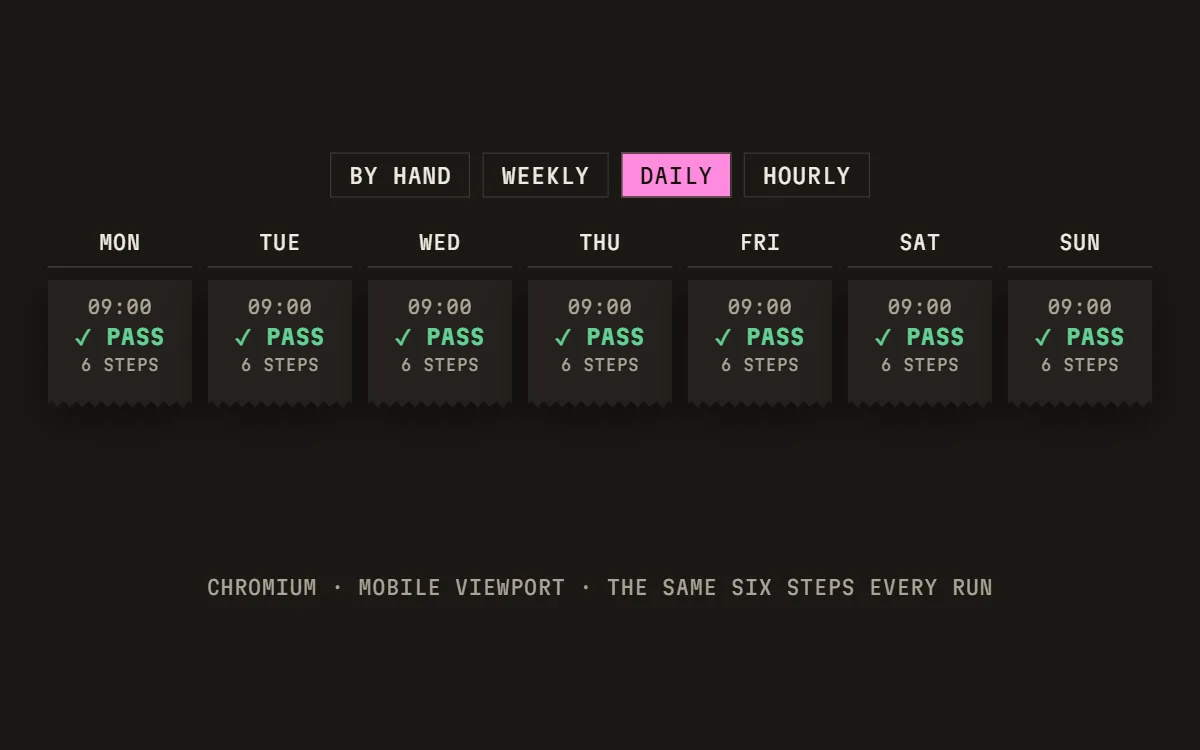
It runs on a scheduleWeekly, daily or hourly, depending on the plan, or by hand whenever you press Run. Every run follows the same steps in Chromium, on the viewport you chose. 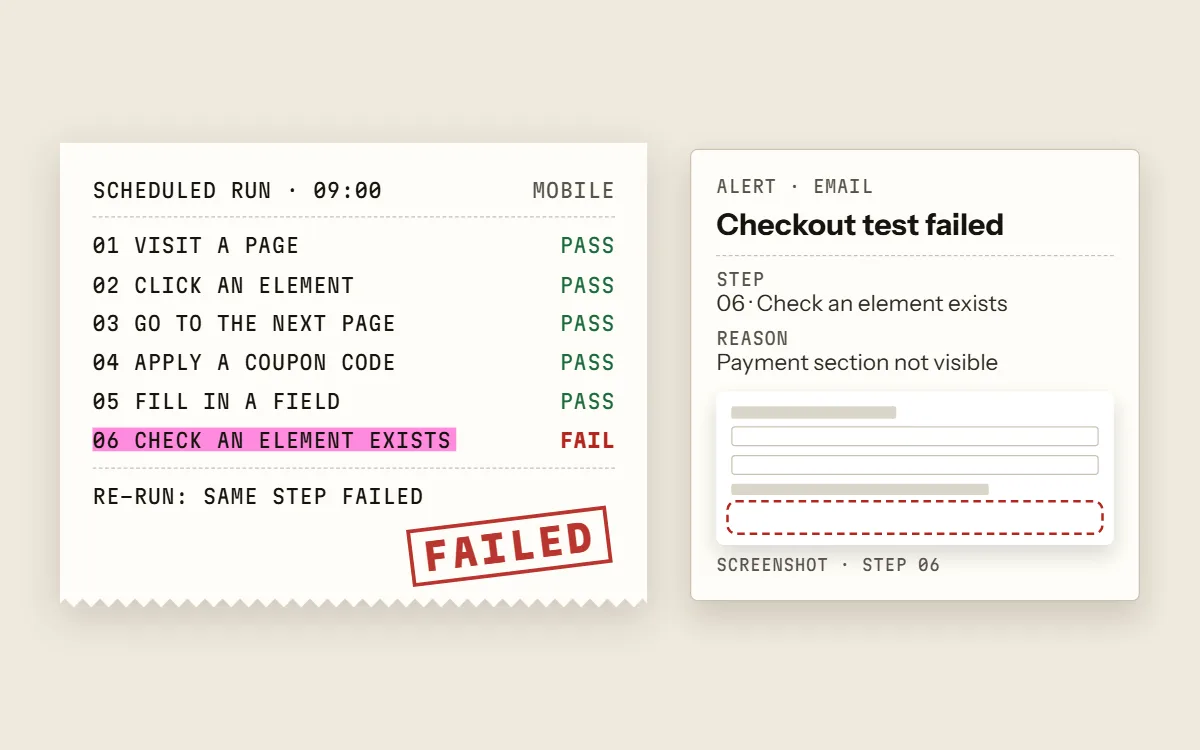
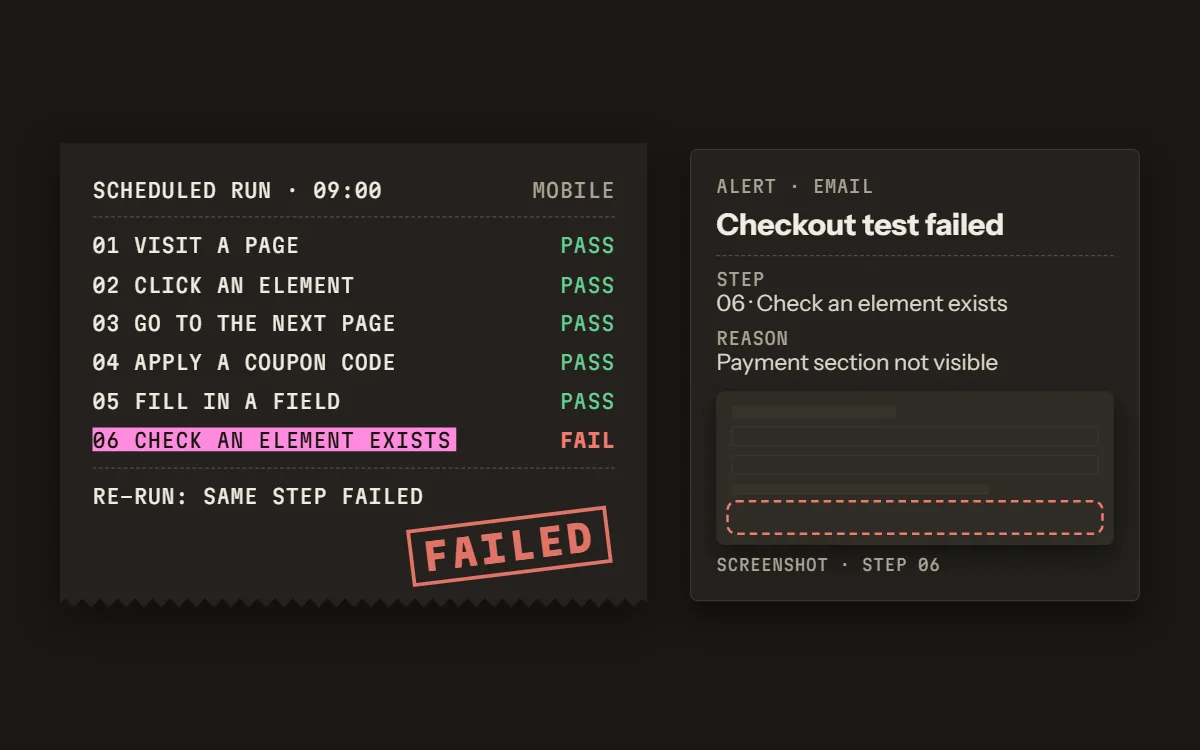
A failed step is checked againA failed scheduled run is re-run once to rule out a blip. Only a confirmed failure sends the alert, by email and by Slack on Pro and Business: the step, the reason and a screenshot. 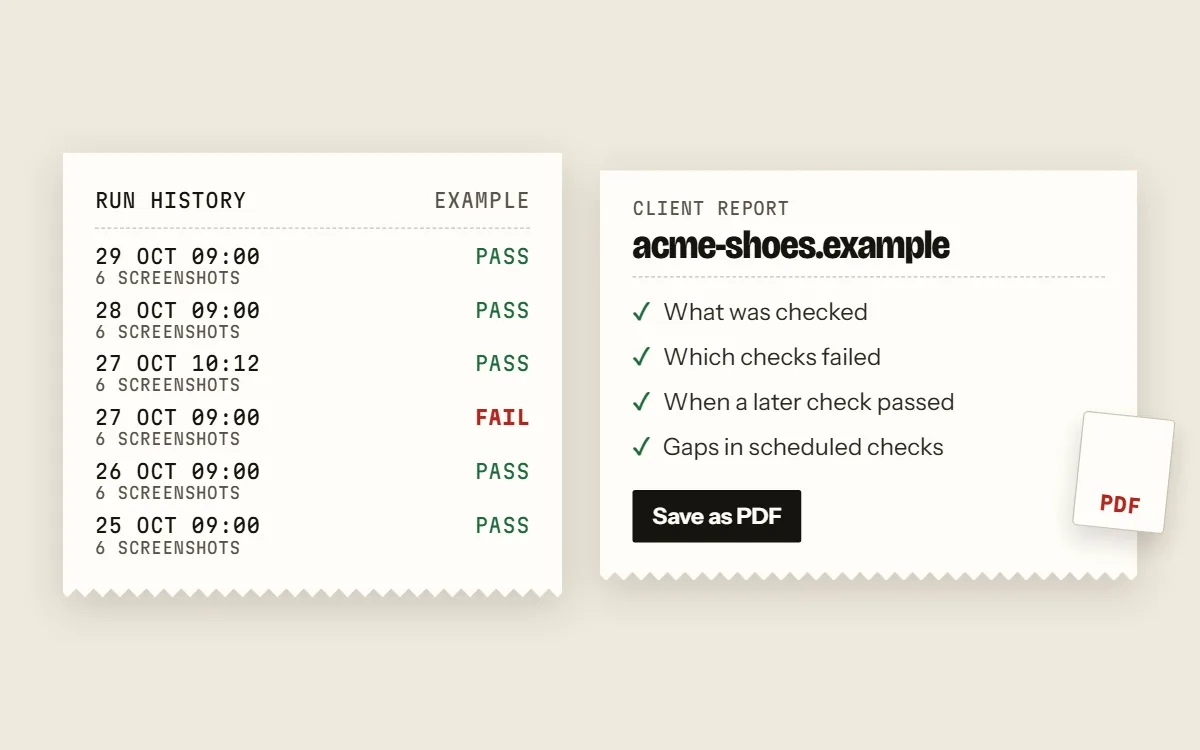
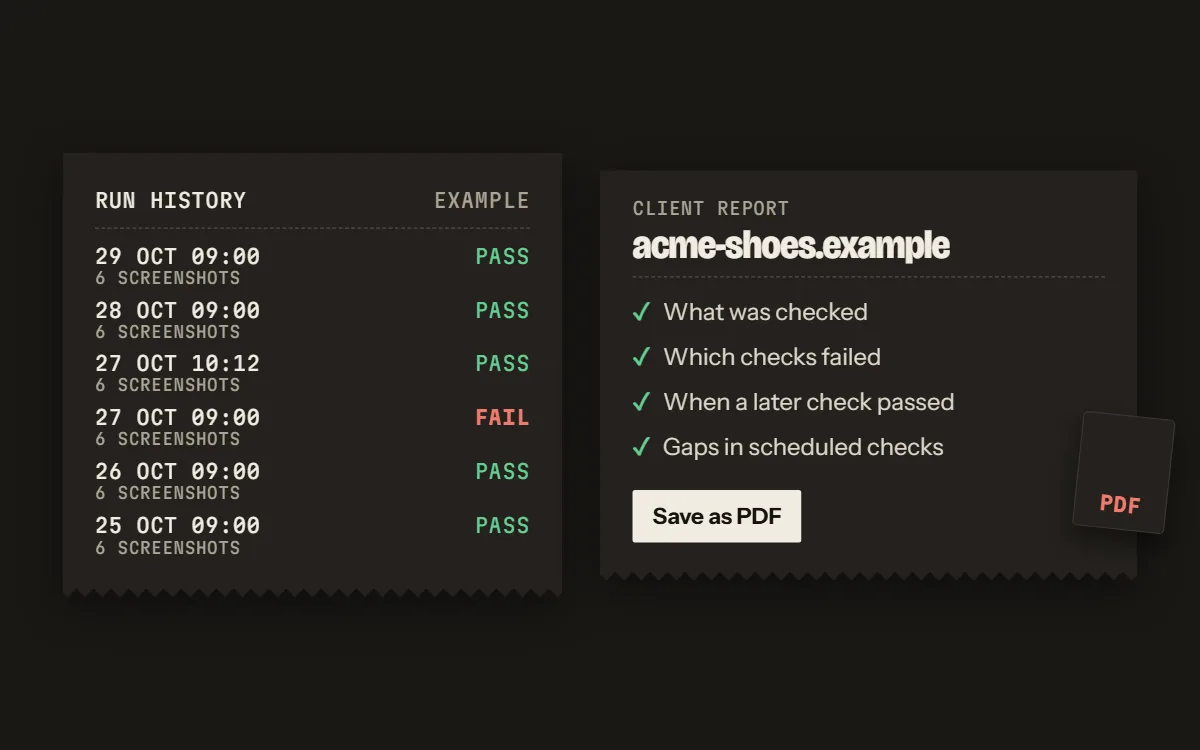
You keep the receiptsEvery run keeps a screenshot of each step. Paid plans add a report per client store, saved as PDF.
Illustrations: the store, times and values are examples. The steps are the product's real step types.
LUMEN SKINCARE
CHECKOUT CHECK · SCHEDULED DAILY
09 OCT 2026, 06:00 UTC
MOBILE 375×812 · CHROMIUM
- 01Select size 50 ml0.1s
- 02Add to cart0.3s
- 03Cart shows 1 item0.0s
- 04Checkout2.8s
- 05Email0.1s
- 06Address0.1s
- 07City0.1s
- 08Postal code0.1s
- 09Continue to shippingFAILED
- 10Shipping methods are listed—
- 11Continue to payment—
- 12Payment section appears—
- PASSED
- 8
- FAILED AT STEP
- 09
- NOT REACHED
- 3
- RE-RUN TO CONFIRM
- FAILED
RUN-CART-FAIL-1
The sample run, a real run against a test storefront we built.
Anatomy of one check
- 1The headerWhich store and flow, when it ran, on which schedule, and the one viewport the test uses: desktop, mobile or tablet.
- 2The stepsThe steps you set up, in order, each with its timing and a screenshot of the page at that step.
- 3The failing lineWhere the run stopped (here, step 09, “Continue to shipping”), the reason in plain words, and the browser's own message behind it. Steps after it are marked not reached.
- 4The verdictA scheduled failure is re-run once to rule out a blip. Only a confirmed failure sends an alert.
What a test can do
A test is a list of steps on one store. Generate it from the store URL, record it with the Chrome extension on Pro and Business, or add steps by hand.
- 01Visit a page
- 02Click an element
- 03Fill in a field
- 04Select from a dropdown
- 05Tick a checkbox
- 06Wait for an element
- 07Check an element exists
- 08Check text exists
- 09Apply a coupon code
- 10Go to the next page
- 11Scroll the page
- 12Mark as success
Most tests stop before payment. To check the last step too, build a test that completes a zero-total order with a 100%-off code; that order is real and shows up in the store.
When it runs
- By hand
- Whenever you press Run.Any plan
- Weekly
- Found within up to 7 days.Not offered
- Daily
- Found within up to 24 hours.Not offered
- Hourly
- Found within about an hour.Not offered
Runs come from a monthly allowance shared by the workspace. Before you turn on a schedule, the test shows whether it fits what's left this month.
When a step fails
- The scheduled run is re-run once to rule out a blip.
- A confirmed failure sends an email, and a Slack message on Pro and Business. Signed webhooks to your own tools on Business.
- At most one alert per test per hour, so a stuck test doesn't flood your inbox.
- The run page shows the failed step, the reason, and a screenshot of each step before it.
What you keep
- A screenshot of every step of every run.
- A video of each run on Pro and Business (not for runs that enter a sensitive value).
- Run history for 7 to 90 days, depending on the plan.
- A client report per store on paid plans, saved as PDF; with your agency's branding on Starter, Pro and Business.
Where it runs
- Chromium, the engine behind Chrome and Edge.
- One viewport per test: desktop, mobile or tablet. Mobile and tablet are emulated screens, not real iPhones or Safari.
- Covering desktop and mobile takes two tests.
- Also on every plan: scans of each site you add for tracking scripts, pixels and cookies, with a note when one is added, removed or changed.
Try it on one store.
Free plan: one test, 10 runs a month by hand, no card. Scheduled runs start on a paid plan, and every paid plan starts with a 0-day trial.